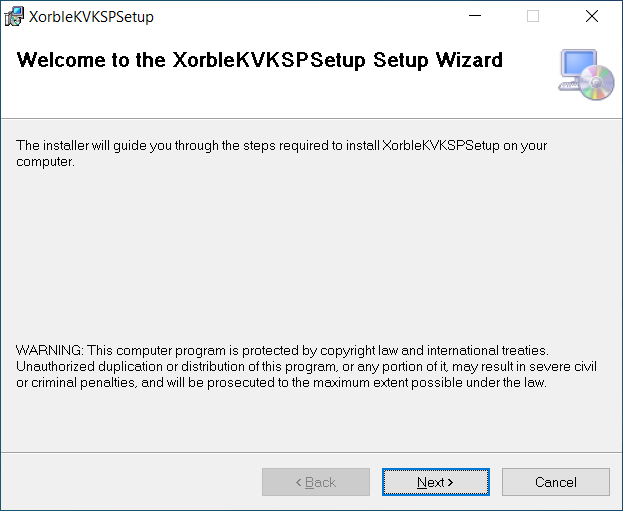
Download the KSP installation file and then select and run it.
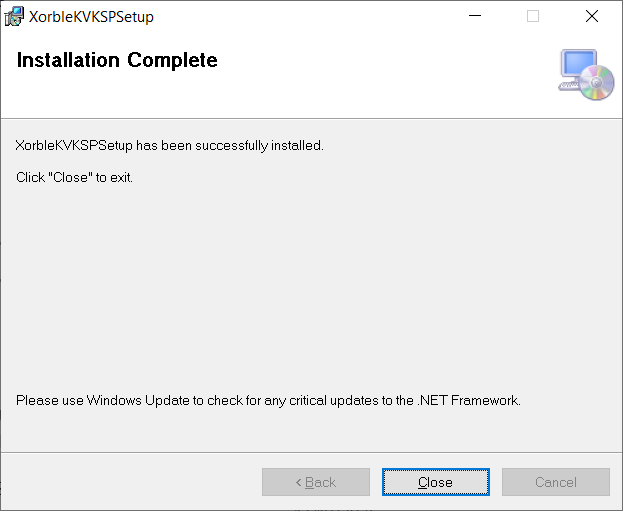
Run the XorbleKVKSP.msi installer and wait for the installation to complete (this should only take a few seconds)
Installing the Xorble KSP with Dependencies
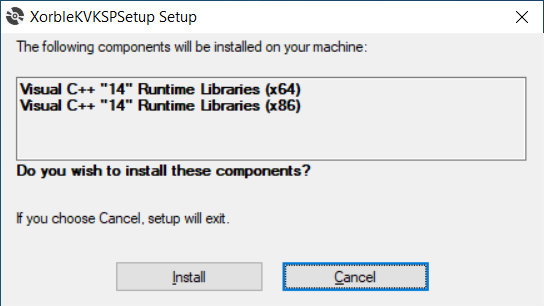
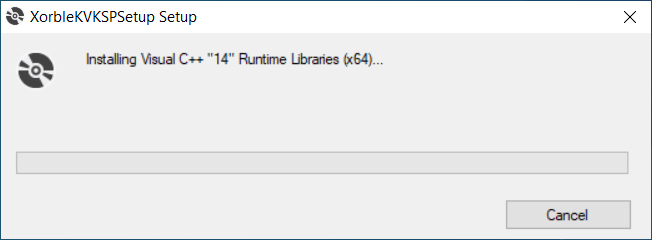
As well as the MSI, a setup.exe file is also provided together with run times for Visual C++ 14 and .NET Framework 4.7.2, which are dependencies of the KSP.
Checking the Installation
KSP Installed Files
The installation should copy the installation files to the following
Copies the following files to c:\windows\system32 (%SystemRoot%\System32)
- XorbleKeyVaultKSP.dll
Copies the following file to C:\Program Files\Xorble\XorbleKVKSPSetup\
- XorbleKVKSPUserConfig.exe
- XorbleKVKSPSyncSvc.exe
- XorbleKSPRegisterProvider.exe
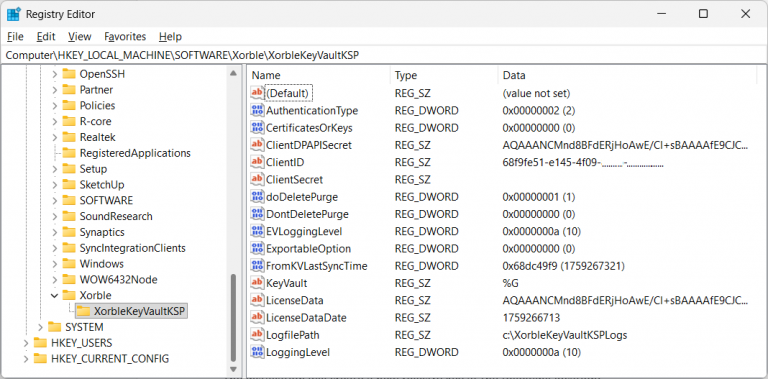
Registry keys
The installation will create a new registry key at the following location:
- HKEY_LOCAL_MACHINE\SOFTWARE\Xorble\XorbleKeyVaultKSP
KSP Registration
Registration of the Cryptographic Provider in the registry. The provider registration can be seen at the following registry path:
- HKEY_LOCAL_MACHINE\SYSTEM\CurrentControlSet\Control\Cryptography\Providers\Xorble Key Vault Key Storage Provider\UM
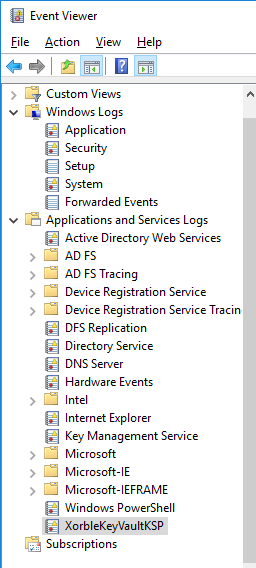
New Event Provider
The installer also registers a new event source which can be shown in the event viewer as shown below:
Azure Endpoints Accessed by the KSP
The KSP needs to be able to access various endpoints within Azure. Specifically, the KSP needs to be able to communicate with Azure Key Vault, Entra and the licensing endpoint. The URLs that it needs to communicate with are as follows:
- https://<vaultname>.vault.azure.net
- https://login.windows.net
- https://xorblekvksplicensingapp.azurewebsites.net
Installing the KSP using a PowerShell RunBook
The following PowerShell script downloads the installer, installs the pre-requistites and then installs the KSP. This script can be run manually or can be automated across multiple machines using a RunBook.
Create a new automation account (called something like XorbleKVKSPInstall) and within this create a new Runbook (called something like XorbleKVKSPInstallPS5_1). The Runbook will need to be created to use PowerShell 5.1 by default. Paste the following PowerShell code into the RunBook.
From the automation account create Hybrid Worker Groups for each of your groups of machines that need to have the KSP installed.
Once when this is setup, start the runbook, select Hybrid Worker and the group of machines to target and the hit Start.
$global:scriptPath = $myinvocation.mycommand.definition
function Restart-AsAdmin {
$pwshCommand = “powershell”
if ($PSVersionTable.PSVersion.Major -ge 6) {
$pwshCommand = “pwsh”
}
try {
Write-Host “This script requires administrator permissions to install the Xorble Key Vault Key Storage Provider. Attempting to restart script with elevated permissions…”
$arguments = “-NoExit -Command `”& ‘$scriptPath’`””
Start-Process $pwshCommand -Verb runAs -ArgumentList $arguments
exit 0
} catch {
throw “Failed to elevate permissions. Please run this script as Administrator.”
}
}
try {
if (-not ([Security.Principal.WindowsPrincipal] [Security.Principal.WindowsIdentity]::GetCurrent()).IsInRole([Security.Principal.WindowsBuiltInRole]::Administrator)) {
if ([System.Environment]::UserInteractive) {
Restart-AsAdmin
} else {
throw “This script requires administrator permissions to install the Xorble Key Vault Key Storage Provider. Please run this script as Administrator.”
}
}
[Net.ServicePointManager]::SecurityProtocol = [Net.ServicePointManager]::SecurityProtocol -bor 3072;
$XorbleKVKSPPath = Join-Path $env:SystemRoot “XorbleKVKSP”
if (-Not (Test-Path -Path $XorbleKVKSPPath)) {
New-Item -Path $XorbleKVKSPPath -ItemType Directory
Write-Output “Directory ‘$XorbleKVKSPPath’ created”
}
$tempPath = Join-Path $XorbleKVKSPPath “temp”
if (-Not (Test-Path -Path $tempPath)) {
New-Item -Path $tempPath -ItemType Directory
Write-Output “Directory ‘$tempPath’ created”
}
$KVKSPURL = “https://xorblesoftware.blob.core.windows.net/xorblekvksp/XorbleKVKSP.zip”;
$installZipPath = Join-Path $tempPath “XorbleKVKSP.zip”
if (Test-Path “$installZipPath”) {
# Get the last modified date and only download if newer
$lastModified = (Get-Item “$installZipPath”).LastWriteTime.ToUniversalTime().ToString(“R”);
$headers = @{ “If -Modified-Since” = $lastModified}
}
else {
Write-Host “File does not exist.”
$headers = @{}
}
# Download the installation package
Invoke-WebRequest -UseBasicParsing -Uri “$KVKSPURL” -TimeoutSec 30 -Headers $headers -OutFile “$installZipPath”;
Unblock-File -Path “$installZipPath”
# Define variables for the source ZIP file and the destination folder
Expand-Archive -Path “$installZipPath” -DestinationPath “$tempPath” -Force
# Install the hybrid KSP
Start-Sleep -Seconds 5;dir
$VCx64 = Join-Path $tempPath “vcredist_x64\vc_redist.x64.exe”
$VCx64Log = Join-Path $tempPath “vc_redist_x64.log”
$VCx86 = Join-Path $tempPath “vcredist_x86\vc_redist.x86.exe”
$VCx86Log = Join-Path $tempPath “vc_redist_x86.log”
$DotNetFX = Join-Path $tempPath “DotNetFX472\NDP472-KB4054530-x86-x64-AllOS-ENU.exe”
$DotNetFXLog = Join-Path $tempPath “DotNetFX472.log”
$KVKSPSetup = Join-Path $tempPath “XorbleKVKSP.msi”
$KVKSPSetupLog = Join-Path $tempPath “XorbleKVKSP.log”
Start-Process -FilePath “$VCx64” -ArgumentList “/install /quiet /norestart /log $VCx64Log ” -Wait
Start-Process -FilePath “$VCx86” -ArgumentList “/install /quiet /norestart /log $VCx86Log ” -Wait
Start-Process -FilePath “$DotNetFX” -ArgumentList “/q /norestart /log $DotNetFXLog ” -Wait
# Finally do an install or reinstall of the MSI.
Start-Process -FilePath “msiexec” -ArgumentList “/i $KVKSPSetup /quiet /norestart /log $KVKSPSetupLog ” -Wait
}
catch {
Write-Host -ForegroundColor red $_.Exception;
}